Every feature made for AI.
Screenshots, GIFs and video for people and AI, with the context behind every capture. Works with Claude Code, Cursor, ChatGPT, Windsurf, and GitHub Copilot Chat on Mac.
AI-Ready Screenshots with Context Banner.
Stash is the first screenshot tool made for agentic coding. Every capture is composited with an AI Context Banner — app, window title, OS, display, appearance (light/dark), timestamp, and an 8-character capture shortID — so Claude Code, Cursor, ChatGPT, Windsurf, and GitHub Copilot Chat always know what they're looking at. Your arrows and rectangles are described as structured callouts, not confused with the original UI.
- AI Context Banner composited directly onto every screenshot:
- App name and window title
- OS version, appearance (light/dark), display resolution
- Timestamp and 8-character capture shortID (
#XXXXXXXX) for MCP lookups - Color space and scale factor
- Annotations (arrows, rectangles, ellipses) are described in structured text metadata
- AI reads annotations as user callouts, not as part of the original UI
- Solves the "visual context gap" — AI tools strip image metadata and can't distinguish annotations from UI elements
- Works with Claude, ChatGPT, Cursor, Windsurf, GitHub Copilot Chat, and any multimodal AI
When you paste a screenshot into Claude or ChatGPT, AI tools strip standard image metadata (EXIF, IPTC). They can't tell which app the screenshot is from, what OS version you're running, or whether your red arrow is part of the UI or your annotation. Stash composites an AI Context Banner directly onto the image and converts your annotations into structured text metadata. The AI sees something like Visual Studio Code — main.ts · dark · macOS 14.2 · 2026-04-20 10:14 · #5B8B643F — plus descriptions of your callouts. No typing required. (Also ideal for vibe coding workflows.)
MCP server for your agents.
Stash ships a local Model Context Protocol server so Claude Code, Claude Desktop, Cursor, and other MCP-speaking agents can query your captures by name or ID. The one-line installer auto-configures the official three; the server listens on a Unix domain socket — no cloud relay, no network traffic, nothing leaves your Mac to use it.
- Auto-configures Claude Code, Claude Desktop, and Cursor with one command
- Local socket only (
~/Library/Application Support/Stash/mcp.sock) — no cloud relay, no network traffic - Five tools agents can call:
stash.list_recent(n)— newest-first summaries of your recent capturesstash.search(query)— substring search across app, window title, bookmark, text content, URLstash.get_capture(id)— full dossier for a screenshot (app/window/URL/a11y tree/annotations)stash.get_bundle(id)— video bundle with report, per-frame metadata, and audio pathstash.render_plain(id)— token-minimal plain-text rendering for inline paste
- Versioned
stash-1protocol — agent instructions don't break when Stash updates - Peer-auth allowlist — only clients you've approved can connect
- Other MCP clients (Windsurf, Zed, ChatGPT Desktop, Codex CLI) work via manual setup
Why MCP beats pasting a screenshot into a chat: when you drag a PNG into most chat clients, the XMP metadata and accessibility sidecars get stripped on upload. MCP delivers the entire dossier — app/window/URL, pristine accessibility tree, annotation geometry, dev context for code editors — in a single tool call, without you reaching for the clipboard. A full video session costs an agent ~6–10K tokens for the structured context; the same session uploaded as files would cost 50K+ and arrive with weaker grounding.
Selective Video Capture + Instant Replay.
Record the whole screen immediately with ⌃⌘V, or use ⌃⌘B for Selective Video Capture. The dedicated shortcut opens the window and region selector without adding another click to every full-screen recording. Add microphone or system audio when needed, and keep a capture report with frames and recorded context for your AI.
- Full-screen video (
⌃⌘V) — start recording immediately with optional microphone and system audio - Selective Video Capture (
⌃⌘B) — choose a window or region, then record - Instant Replay — always-on 60-second rolling ScreenCaptureKit buffer. Press the hotkey and pick how much to save: 15s, 30s, or 60s of what just happened.
- Frame extraction — up to 30 interaction-anchored key frames per recording, hard-capped so token cost stays predictable
- Two copy modes:
- Copy All — report + key frames + audio on clipboard, paste into Claude, ChatGPT, Gemini
- Copy File Path + Context (
⌘⌃P) — paste into Claude Code, Cursor, or any terminal AI that reads images from disk
- AI Capture Report includes:
- Voice transcript interleaved with interaction timeline
- Click tracking with "nothing happened" and retry detection
- Console/error OCR from terminal and DevTools
- Focus tracking across app switches
- Key frames extracted at interaction, voice, and visual-change events
- State change analysis (what changed vs. what didn't)
Context that evolves with AI. As models gain new image, audio and video capabilities, Stash gives your agent several ways to inspect a recording: a structured report, extracted frames and the original media.
The Stash advantage: The report connects available frames and recorded actions to timestamps. Your agent can start with relevant evidence and inspect the source video when motion or timing needs a closer look.
Record and share GIFs.
Show a quick walkthrough, a visual bug or a product update in a short loop. Share GIFs in email and Slack, or upload one to X so people can see a moving demo directly in the feed. Playback depends on the app and viewer’s settings.
- Dedicated GIF shortcut (
⌃⌘G) — choose a window, region or full screen - Trim and copy — select the few seconds that make your point
- Automatic size fitting — adjusts export dimensions and frame rate to fit the selected sharing limit
- Original video retained — use it when you need sound, detail or a longer explanation
- AI context retained — the source capture keeps its extracted frames and context report; include those separate files when sharing with an agent
There is a time for video and a time for a GIF. Use the short loop to explain one action, and the full recording when the story needs more room.
Screenshot & annotate.
Take screenshots, add arrows and annotations, and share with one click. Built for agentic coders who move fast, want fewer clicks, and paste visuals into AI chat dozens of times a day.
⌘⌃Sto capture (region, window, or full screen)- Built-in annotation: arrows, rectangles, ellipses, blur
- Compact color picker (7 colors)
- Auto-copy on each edit — no save step
- One-click sharing workflow
Press ⌘⌃S, select the region, and an annotation overlay appears instantly. Draw an arrow to point at the bug, add a rectangle around the UI element, blur sensitive data. The moment you draw, the annotated image is copied to your clipboard automatically. No save dialog, no file management, no exporting. Just ⌘V into Claude, Cursor, Slack, Jira, or any app that accepts images.
Clipboard history + bookmarks.
Every snippet, prompt, and code block you copy — automatically saved, searchable, and one click away. Essential for the copy-paste-heavy workflow of agentic coding.
- Automatic capture of all copied text and images
- Searchable history kept forever by default, with filters (All / Text / Images)
- One-click access from the menu bar
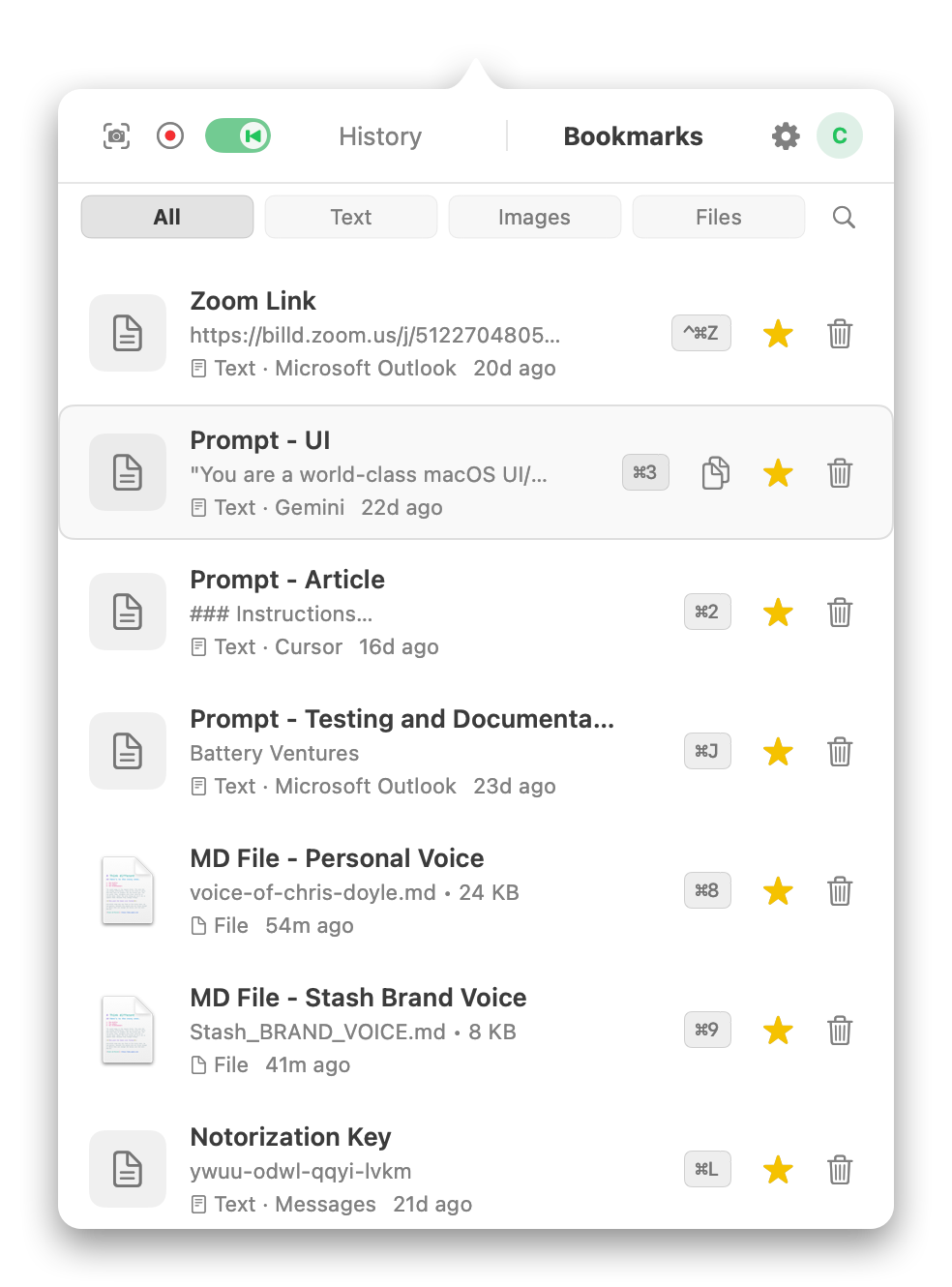
- Permanent bookmarks for your best prompts, system messages, and code templates
Never lose a code snippet, API key, or AI prompt again. Everything you copy is saved locally and searchable. See which app each clip came from, and bookmark your most-used clips for instant access.
Hotkey paste + file-path paste.
Assign keyboard shortcuts to your most-used clips. Press the hotkey from any app and it pastes instantly. For terminal AI tools like Claude Code, ⌘⌃P pastes a file path plus enriched context — the one shortcut that bridges GUI screenshots and terminal agents. The same paste works over SSH: a terminal on a headless Mac or Linux box can't accept a pasted image, but it takes a file path. Save captures to a synced folder and the path resolves on the agent's host.
- Up to 20 custom keyboard shortcuts
- Press hotkey from any app — content pastes instantly
- Auto-assigned on bookmark creation
- Default shortcut:
⌘⇧Vto open Stash - File-path paste (
⌘⌃P) — for Claude Code, Cursor terminal, and other agentic CLIs that read images from disk - Headless and remote agents — SSH'd into a headless Mac or Linux machine, you can't paste an image into the terminal; you paste the file path instead. See the headless workflow
Bookmark your system prompt, code review template, Zoom link, or email signature. Assign a hotkey like ⌘J or ⌘K. Press it from anywhere — Claude, Cursor, Slack, email, browser, terminal — and it pastes instantly. No app switching, no scrolling, no searching.
Private by design.
Your clipboard, screenshots, and bookmarks never leave your Mac — stored in a local SQLite database, no cloud sync, no tracking. The MCP server runs over a local socket so your AI reads captures without a cloud round-trip. Videos are the one exception: they upload when you share them and stay available until you delete them.
- Clipboard, screenshots, and bookmarks in
~/Library/Application Support/Stash/ - No telemetry on what you capture
- No network requests for clipboard or screenshot data
- SQLite database + local file storage for private data
- Videos upload to our cloud only when you share them, and stay available until you delete them
Your clipboard history contains sensitive data — API keys, passwords, private messages, code, screenshots of internal tools. We don't want that data, and you shouldn't have to trust us with it. Secret redaction scrubs detected API keys, tokens, and passwords before anything hits disk. The only non-video network activity is Sparkle update checks (open source), which sends only your current app version.
Built for agentic coding.
Free during beta.
A screenshot, GIF and video tool made for agentic coding. Download Stash and get every feature free during public beta.
FAQ
Common questions about Stash.
What is Stash?
Stash is a native macOS menu bar app that combines an AI screenshot tool, screen recorder, and clipboard manager. Every capture ships as structured context — a visible AI Context Banner, embedded XMP metadata, and an accessibility tree — so Claude Code, Cursor, and ChatGPT can read what's in the image without guessing from pixels.
Which AI coding tools does Stash work with?
Stash auto-configures Claude Code, Claude Desktop, and Cursor via a one-line installer. Other MCP clients (Windsurf, Zed, ChatGPT Desktop, Codex CLI) work via manual setup — see the stash-1 protocol. Any multimodal AI that accepts pasted images can also read the visible context banner Stash composites onto every screenshot.
What is the Stash MCP server?
A local Model Context Protocol server that ships with the Stash app. Agents call five tools — stash.list_recent, stash.search, stash.get_capture, stash.get_bundle, and stash.render_plain — to query your screenshots and recordings without you copy-pasting. The server listens on a Unix domain socket, not a network port. No data leaves your Mac.
Can Stash record video for AI coding assistants?
Yes. Every recording produces an AI Capture Report bundle — a structured markdown timeline (voice transcript, clicks and scrolls with coordinates, clipboard copy events, app and window focus transitions, detected toasts and stuck spinners) plus up to 30 interaction-anchored key-frame images. LLMs aren't great at reading MP4s; Stash turns every recording into a bundle they can.
Is Stash a clipboard manager too?
Yes. Stash automatically captures all copied text and images with a searchable history kept forever by default, permanent bookmarks, and 30+ custom hotkeys for instant paste from any app. Clipboard data never leaves your Mac. Detected secrets — API keys, tokens, passwords — are redacted before anything hits disk.
What macOS versions does Stash support?
macOS 14.0 (Sonoma) or later. Free during public beta.